
Amaze has long been one of the most useful tools for checking MCCs. By making an unsuccessful transaction with a blocked card, you can verify the MCC on the Instarem app, then repeat the transaction using the optimal card for the situation.
However, there are signs that Instarem is starting to restrict the way in which cardholders can use this functionality. Earlier this year, MCC details were hidden for unsuccessful wallet-linked transactions, though they were still displayed for card-linked transactions.
Now, there are increasing reports that unsuccessful transactions are only appearing on the Instarem app after a notable delay, which severely diminishes the utility of using Amaze to check MCCs on the fly.
Amaze declined transactions now delayed

If you’ve recently tried to check a merchant’s MCC using a blocked Amaze Card, you may have noticed that the unsuccessful transaction does not appear in the Instarem app until some time has passed.
I should note that this isn’t a new thing, as a couple of months ago, there were already scattered reports of such an issue. However, it now seems to have become more widespread, and I’m seeing the restriction on my account too.
One community member reported a 10-minute delay before unsuccessful transactions appeared in the app, but in my experience the delay was closer to 15+ minutes. Either way, a delay of that magnitude makes it impractical to use Amaze to check MCCs for in-person transactions.
Whether this is a system bug or deliberate throttling by Instarem is unclear. Declined transactions still incur expenses for card issuers (to cover the cost of communication technology and fraud checks), and too many declined transactions add up eventually, so there’s certainly an incentive for Instarem to dissuade such behaviour.
How to get instant MCCs
Fortunately, there’s still one way of getting MCCs instantly, though it’s nowhere near as frictionless as Amaze was.
DBS cardholders can place a temporary block on their credit card, attempt a transaction, then use the digibot to find the MCC.
To block the card, log in to the DBS app > Cards > Select the card > Payment Controls > Lock the card. After the unsuccessful transaction, tap the digibot icon on the top right of the home screen, then “Check Recent Transactions” > Proceed > Credit Cards> Select the card > View Transaction history > Declined Transactions
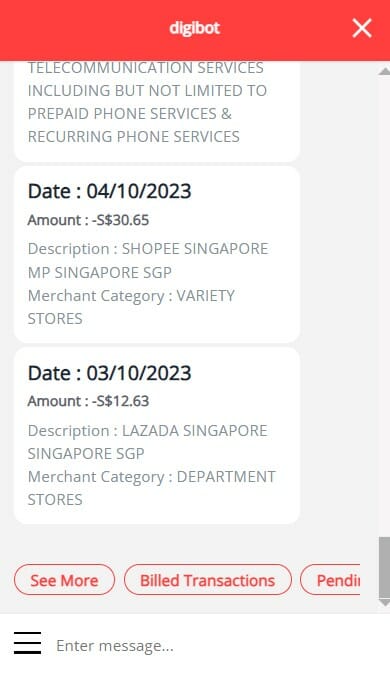
Technically, the MCC description is provided rather than the four-digit code (e.g. Department Stores instead of MCC 5311), but this is specific enough for you to find the answer with a quick Google, or by referring to this file.
The downside is that this requires significantly more steps, as you’ll have to navigate through several menu options before you can obtain the MCC. It’s definitely not the kind of thing you want to be doing while holding up the line.
Card-linked, not wallet-linked
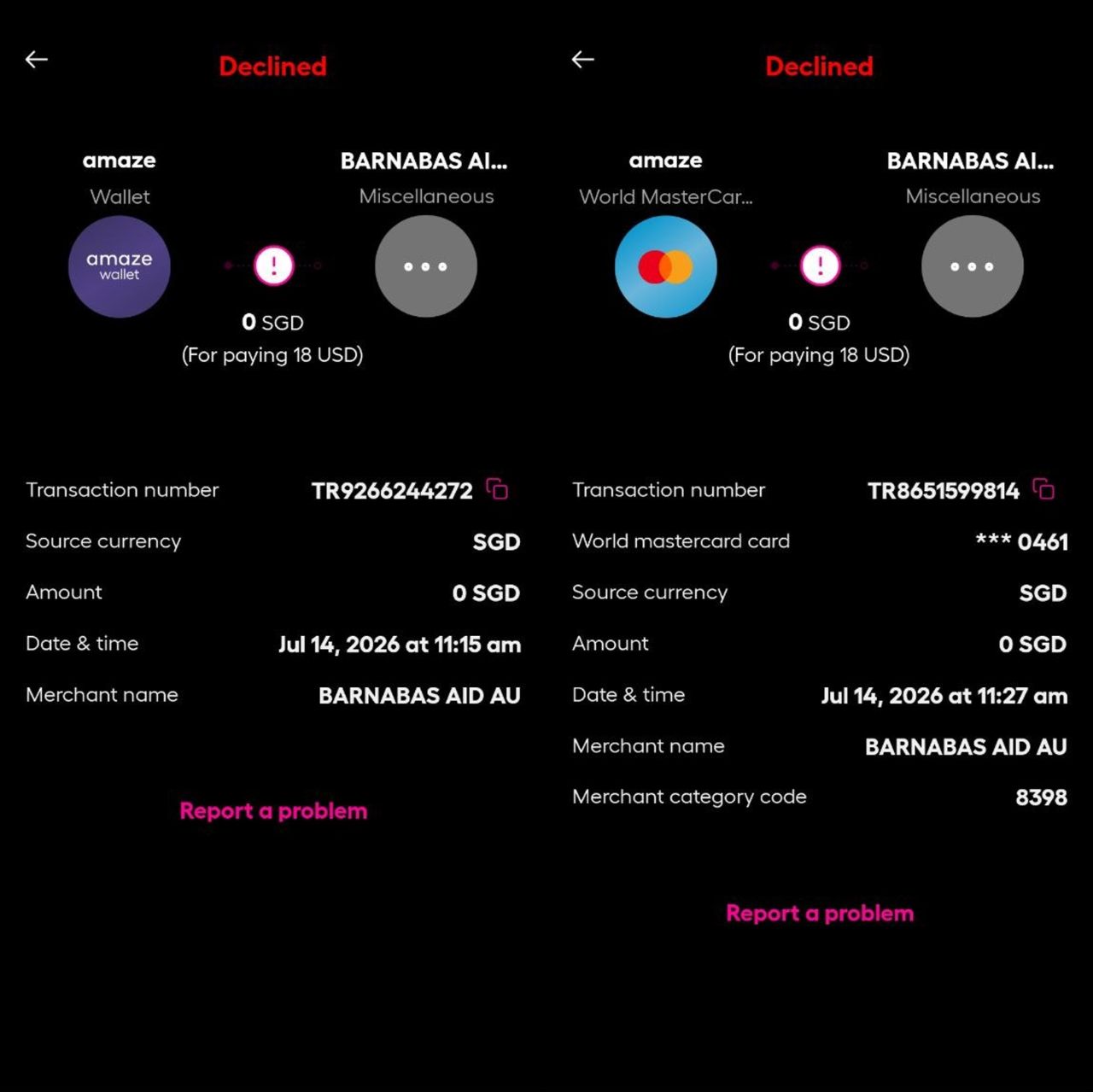
If you still want to use Amaze to check MCCs — perhaps for an online transaction where you have the luxury of time — remember that MCCs will only be displayed for unsuccessful card-linked transactions, not wallet-linked.
| Card-linked | Wallet-linked | |
| Successful | Shows MCC | Shows MCC |
| Declined | Shows MCC | No MCC |
Below is an illustration of what you’ll see for a declined wallet transaction (LHS), compared to a declined card-linked transaction (RHS).
Conclusion
Checking MCCs with a blocked Amaze Card may not be an instant affair for some cardholders anymore, and I’m not optimistic about things returning to the way they were.
For online transactions where you can afford to wait, Amaze still works (provided you use a card-linked rather than wallet-linked Amaze), but for in-person purchases, you might have to switch do the DBS digibot method.
Amaze Cardholders — are you still seeing instant MCCs for declined transactions?

What’s their push factor to do this though? Does MC/Visa have a requirement to card issuers that they must “hide” MCC information?