
A Merchant Category Code (MCC) is the all-important four-digit number that classifies a merchant’s primary business activities. Banks award bonus miles — or exclude them altogether — based on MCCs, so the right MCC can make all the difference between earning a ton of miles on a big-ticket purchase and walking away empty-handed.
It used to be that MCCs were completely opaque to cardholders. The only way to discover them was to make a small test transaction, wait a few days, then call the bank and ask how it coded.
Thankfully, those days are long over. The Visa Supplier Locator may no longer be open to the general public, but there are still four ways of checking a merchant’s MCC, without spending a single cent.
How can you find the MCC?
Below is a summary of the four options that cardholders can use to check MCCs.
| Method | Ease of Use | Reliability |
| ❓HeyMax Visa |
●●● | ● |
| 📱Amaze Card MC |
●● |
●●● |
| 💳Trust Card Visa |
●● | ●●● |
| 🤖 DBS digibot Visa MC |
● |
●●● |
I’ve evaluated each of these methods on two dimensions: ease of use and reliability.
Ease of use refers to how long it takes to get an answer with each method. Is it something you can do on the fly, or is it something you need to sit down and fiddle with?
Reliability refers to how accurate the answer is. Is this something you can stake your life miles on, or is there good reason to be cautious with the results?
I want to emphasise that both are relative. HeyMax already provides a solid baseline for reliability, and while the DBS digibot requires more steps and time than the rest of the methods, it’s not rocket science either.
Here’s how each of these works, and potential pitfalls to take note of.
HeyMax
 |
|
| Get 200 Max Miles when you open an account and complete your first transaction | |
| Get a HeyMax Account | |
| ✓ Key Advantages |
|
| 🞭 Key Disadvantages |
|
HeyMax is the most idiot-proof solution for looking up MCCs — just type in the merchant’s name and hit enter.
There is no need to block a card, or even have access to the merchant’s physical premises or payment portal (you might want to know how Performance Motors codes, but it’s not like you can just walk into the showroom and ask to make a test transaction!).
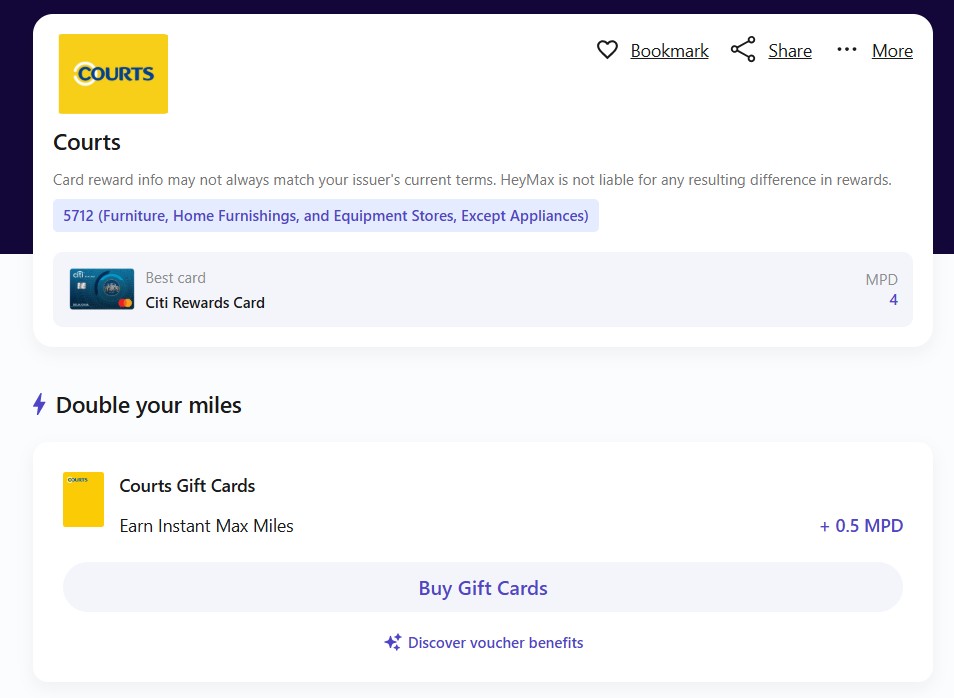
HeyMax results are generally reliable for larger attractions, retailers, department stores, restaurant chains and supermarkets in Singapore. However, it’s much harder to find overseas merchants, or those which process transactions under a different legal name from the customer-facing entity.
Also, HeyMax is less useful in situations where a merchant processes transactions under a range of MCCs (e.g. e-commerce sites like Amazon, Lazada and Shopee). It can list all the potential MCCs, but can’t tell you exactly which one will be used.
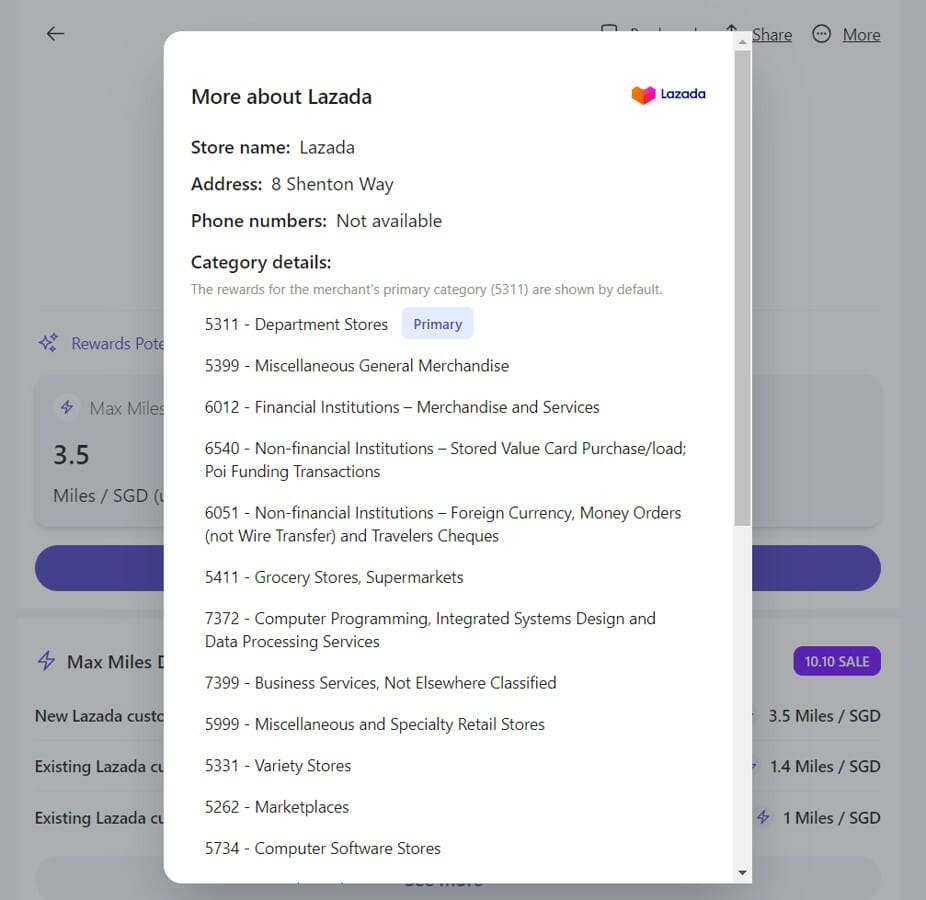
In these cases, it’s better to use one of the other methods outlined below so you can be certain that whatever appears there is how the actual transaction will code.
Amaze Card
 |
|
| Amaze Card | |
| ✓ Key Advantages |
|
| 🞭 Key Disadvantages |
|
You can check MCCs by placing a temporary block on an Amaze card, attempting a transaction, then looking for the failed transaction’s details in the Instarem app.
To do this, go to Card > Manage and disable both in-store purchases and online purchases (you really only need to disable these, but if you want to be kiasu you can just uncheck everything).
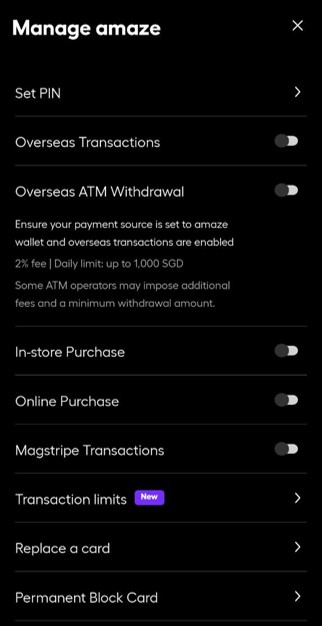
After this, use your Amaze card and attempt to make a transaction with the merchant in question. If you’re prompted to approve the transaction via the Instarem app, go ahead. The transaction will fail, of course, but that’s what we want.
After the transaction fails, visit the Activity tab and you’ll be able to see the MCC of the merchant.

Do note that you will not be able to see MCCs for declined wallet-linked transactions. MCCs will only be displayed for declined card-linked transactions, as well as all successful transactions, regardless of funding source. So make sure your Amaze is linked to a card, not the wallet, before testing.
| Card-linked | Wallet-linked | |
| Successful | ✅ Shows MCC |
✅ Shows MCC |
| Declined | ✅ Shows MCC |
❌ No MCC |
Back in October 2026, Amaze users started reporting that declined transactions only appeared on the Instarem app after a 15-minute delay, which severely limited the utility of checking MCCs through Amaze. Fortunately, that issue has since been resolved, though I wouldn’t rule out a recurrence.
Trust Card
 |
|
| Trust Bank | |
| ✓ Key Advantages |
|
| 🞭 Key Disadvantages |
|
You can check the MCC of a merchant by putting a temporary block on your Trust credit or debit card, attempting the transaction, then checking the app for the declined transaction details.
To do this, open the Trust app, tap on View Cards > Lock Card. After this, attempt the transaction, whether online or in-person. Once it fails, look for the Activity section, tap View All, then tap on the transaction you just attempted.
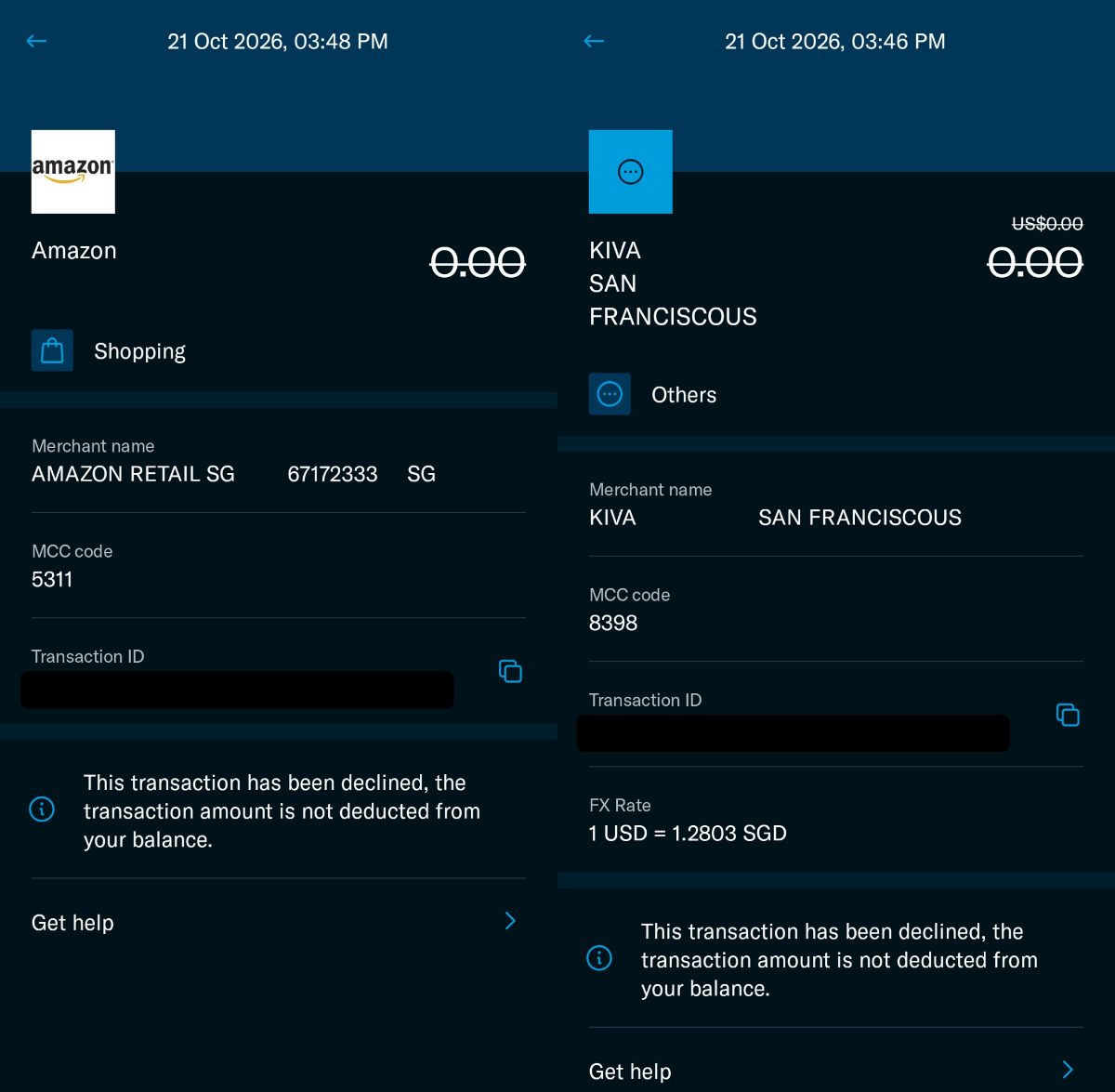
You’ll see the merchant name and MCC code listed. It’s as simple as that!
There’s just one thing to be aware of: when I was attempting transactions with a blocked Trust card on Giving.sg and AXS, both showed up as Visa Provisioning Service, under MCC 6012.
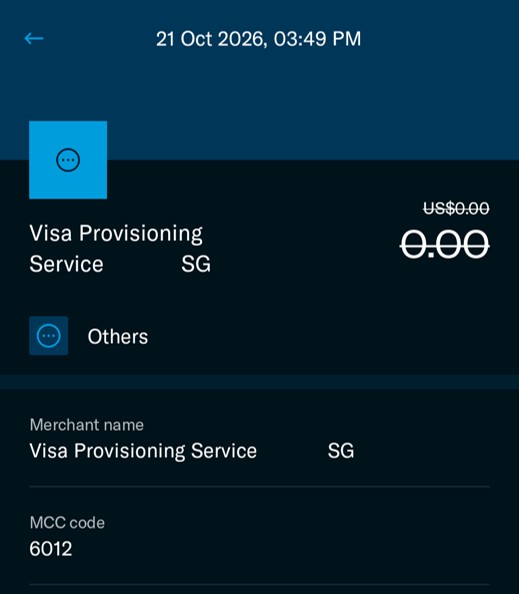
Obviously, that’s not the correct MCC. What’s probably going on is that Visa is first trying to authenticate the card before the actual transaction takes place, but the process fails since it’s blocked. I imagine this must happen in the background all the time, but it’s the first time I’ve seen it appear under a card’s recent activity.
If it’s any consolation, this only affects online transactions. In-store checks won’t have this issue.
DBS digibot
 |
|
| digibot | |
| ✓ Key Advantages |
|
| 🞭 Key Disadvantages |
|
DBS cardholders can check MCCs using the digibot.
The first step is to temporarily block a DBS card via the DBS digibank app. You can do this by tapping More in the bottom right corner, then scrolling down until you see Payment Controls.
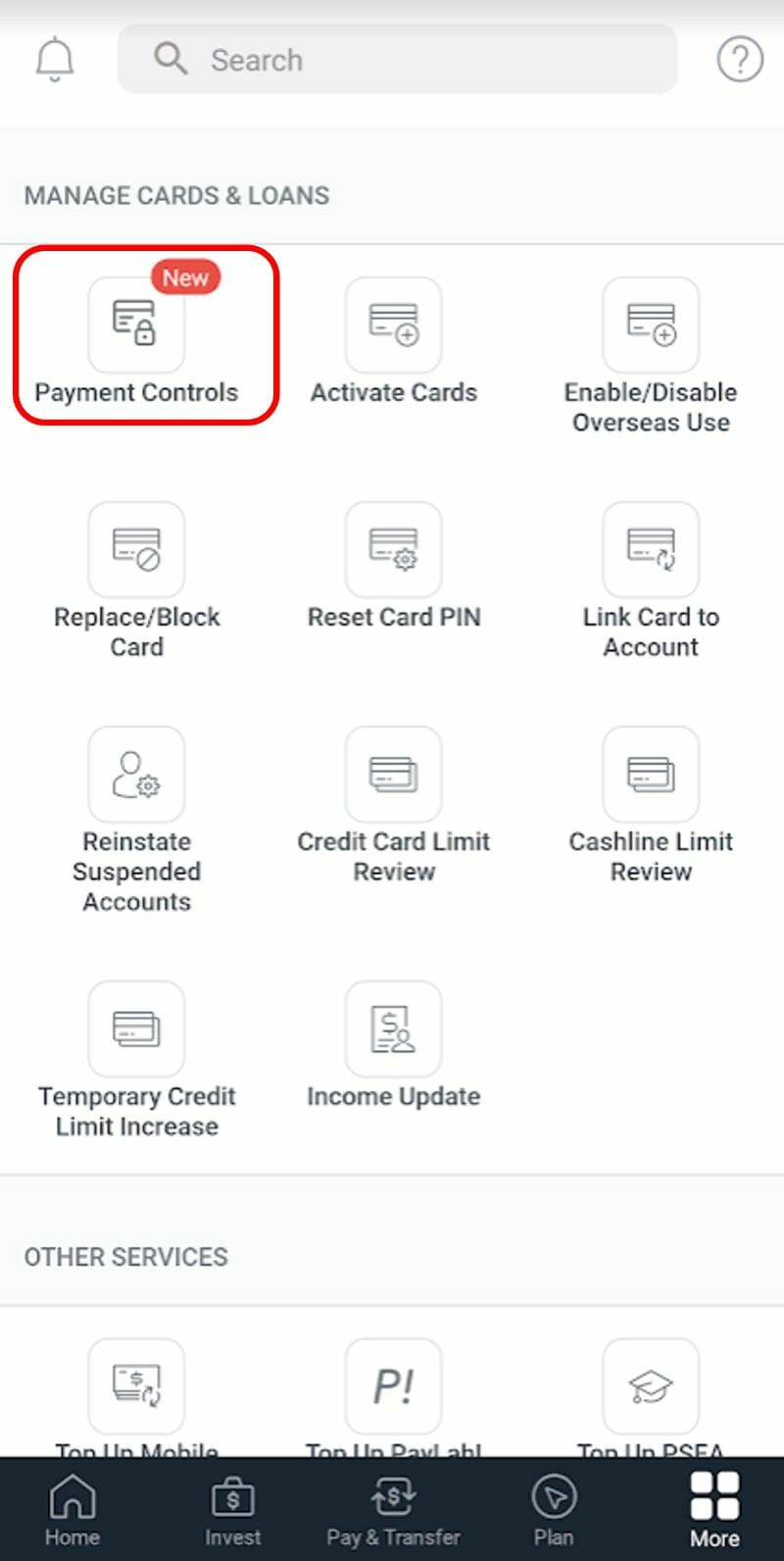
Select the card you wish to use, then toggle the card lock option. Ensure the card gets greyed out, with a lock symbol appearing on top.
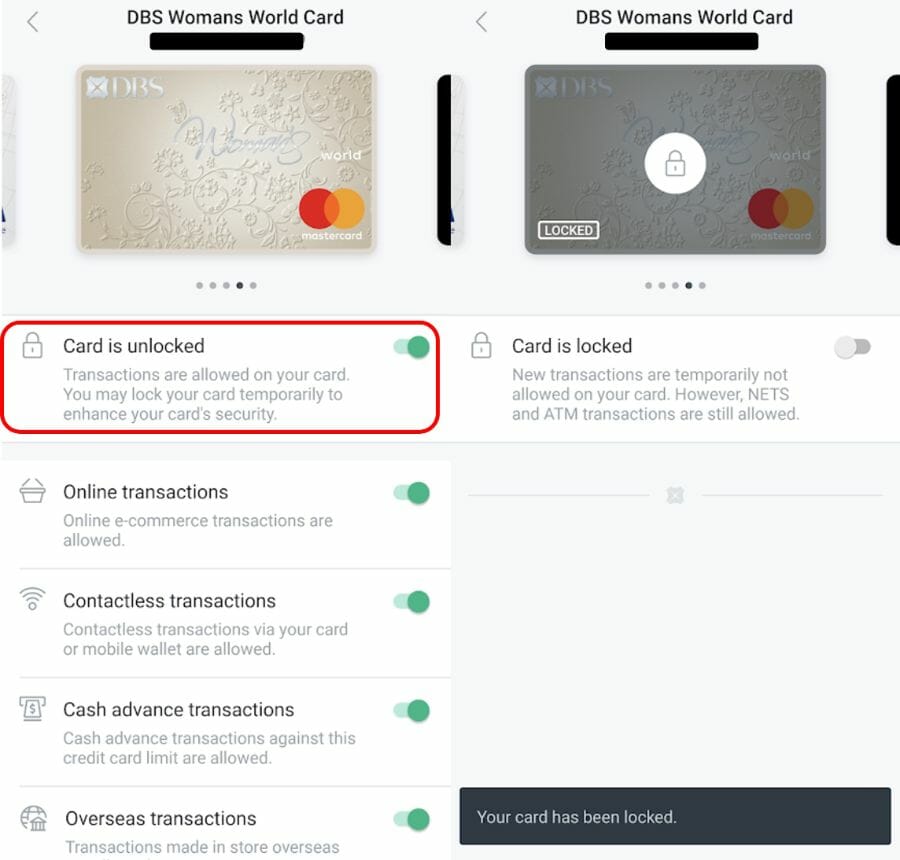
Now go to the merchant and attempt to make the transaction. It will fail, since your card is locked.
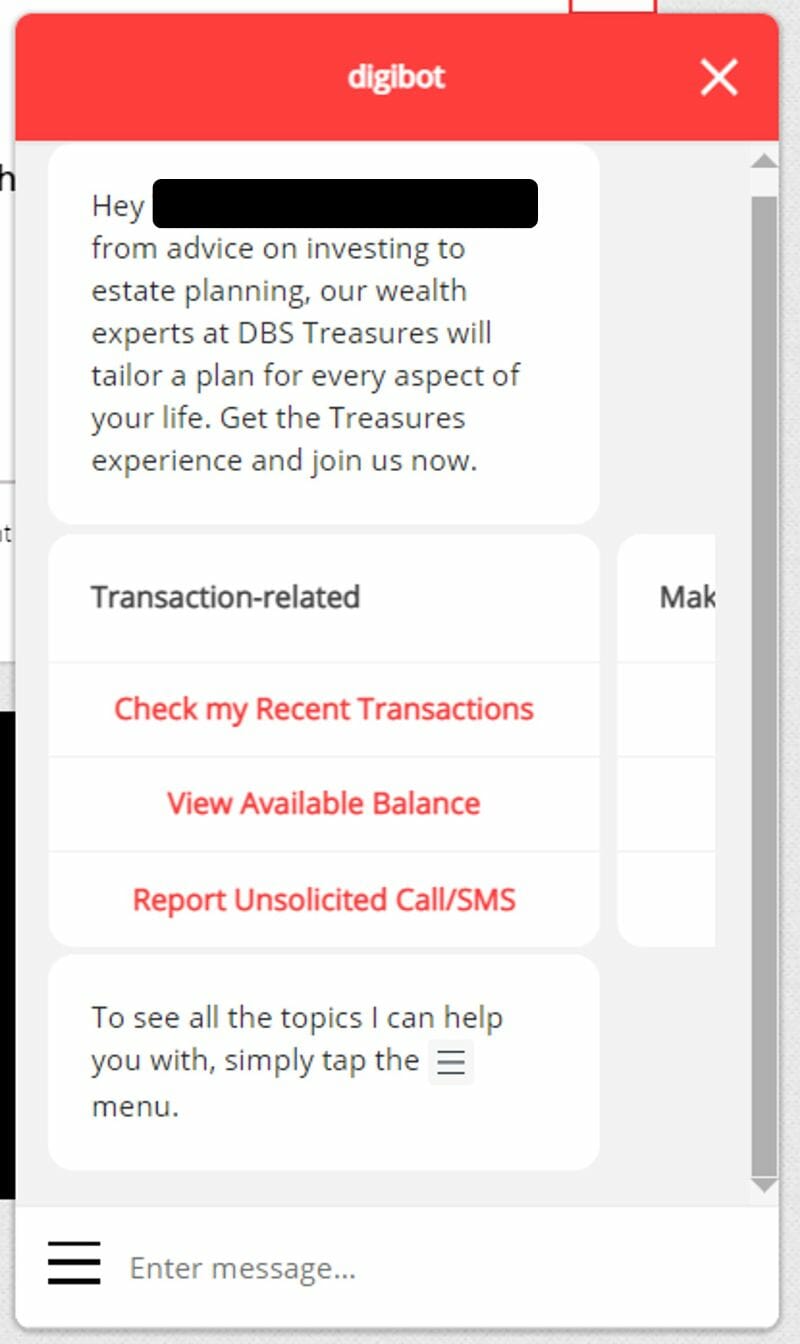
Return to the DBS digibank app or log in to DBS iBanking and summon the digibot.
- For the app, tap the question mark in the top right corner and scroll down to tap “Ask digibot”
- For desktop, click the digibot icon
 in the bottom right corner
Navigate to Check my Recent Transactions > Credit Cards > Select the card you used > View Transaction History > Declined Transactions.
You’ll then see your failed transaction, together with the MCC.
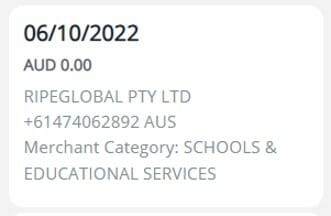
Now that you know the MCC, you can proceed to unblock the card and make the transaction for real, or use a different bank’s card, whichever is more suitable.
The downside of this method is that it’s relatively time-consuming, since you need to interact with a chatbot to get the answer (rather than just viewing transaction details).
Visa vs Mastercard
In my summary table at the start of this post, you’ll notice that I’ve labelled each method with Visa or MC. This refers to whether that method will give you Visa’s MCC, or Mastercard’s MCC.
- HeyMax checks MCCs via Visa’s API
- Amaze is only available on the Mastercard network
- Trust only issues Visa cards
- The DBS digibot can be used with DBS cards on both the Visa and Mastercard networks
Most of the time, Visa and Mastercard will assign the same MCC. However, there can be rare situations where they differ.
Cast your mind back to early 2020, when Mastercard classified GrabPay top-ups as MCC 6540 (POI Funding Transactions), but Visa classified them as MCC 7399 (Business Services Not Elsewhere Classified). This meant you could earn 4 mpd on GrabPay top-ups with the Citi Rewards Visa, but not the Mastercard! That didn’t last forever, of course, but it’s just an example of how the two card networks can sometimes sing a different tune.
More recently, I learned that a GrabUnlimited subscription codes as MCC 5812 (Restaurants) on Visa, and MCC 4121 (Taxicabs) on Mastercard.
Therefore, if there’s absolutely no room for error, then you should do your testing with a method using the same network as the card you intend to use.
Conclusion
Opaque MCCs are a thing of the past now, with cardholders having multiple ways of verifying an MCC before spending a single cent.
If you need a quick answer and don’t have access to the merchant, HeyMax is the best place to start. If you need certainty, especially for merchants that use multiple MCCs, a test transaction using a locked Trust, Amaze or DBS card will tell you exactly how the transaction will code. And if there’s no room for error, test on the same network as the card you plan to use.
Checking might not be worth the hassle for a S$5 coffee, but I’d definitely take the time for any big-ticket purchase.

One thing about the Heymax app is that it logs you out very frequently + insists on you logging in before using it. Really frustrating experience.
Yeap this.
I thought I am the only one facing this annoying issue
Does debit card work for the Digibot?
anyone experience if a merchant could have different MCC codes with different bank issuers ?
DBS, Maybank and Citibank have shown different codes at the same eatery, sometimes 5812 other times 5814, very odd
shouldn’t be the case, since the MCCs are dependent on the card network (visa/mc) and not card issuer (Dbs/uob).
one possibility is that the merchant itself processes over a range of mccs, but hard to believe a restaurant would do that
It is possible for branches of franchises to have different MCC. Sometimes Mall A restaurant X is not having same MCC with Mall B Restaurant X . Maybe that contributes to the inconsistency
Doesn’t seems like Digibot and Amaze works anymore…
Since digibot gives the MCC description, how do you lookup the MCC code from the MCC description?
https://www.citibank.com/tts/solutions/commercial-cards/assets/docs/govt/Merchant-Category-Codes.pdf
try KardoAI. it maps via MasterCard direct.
DBS Digibot does not seem to show merchant category for some transactions. Any idea why this is the case? This happens to me consistently for the same merchants (such as Shopee) on all transaction types. (billed, unbilled, declined)
The DBS Digibot method is not full proof. I made a purchase that the Digibot says is under Travel (not Transportation). Turns out the MCC Code was 4111 (Transportation). I received 0.4 miles/dollar for that transaction in the end (it’s not a huge amount thankfully).
Is that possible that transaction through Taobao app MCC change from 5311 to 5999? Was using Solitaire and mid Aug switch to Lady’s card. My transactions in Aug (Lady’s) turned out to be under MCC 5999 (according to UOB), but all transactions in Sep back to MCC 5311. All my transactions were through Taobao mobile app, nothing changed.
ecommerce sites are tricky as they process under a range of MCCs. that’s why i prefer to default to citi rewards or dbs wwmc
Mmm this doesn’t seem to work anymore. I locked and it prompted me to approve the online txn which i did. payment was unsuccessful which proved it was locked but then digibot said no declined transactions 🙁